
Leasing with AppFolio,
the Fidelity way
This guide teaches you the AppFolio screens you'll use every day, and explains the automated follow-up system that works alongside you. Read Part 1 before your first showing. Keep the rest handy on your phone.
- Decatur & Huntsville, AL
- All times in Central
- Part 1 takes about 30 minutes
How to read this guide
Getting started
Set up once. About 30 minutes.
How our leasing works
A computer system does the repetitive follow-up. You do the part only a person can: showing the home and helping people apply.
A lead comes in
Someone asks about a home on Zillow, our website, or by calling the yard sign.
Minutes later
The system texts and emails a link to book a showing, sends the rental application, and places a friendly AI phone call.
They book a time
They pick from your open hours. Reminders go out 24 hours and 4 hours before.
You show the home
Meet them in person, answer questions, and mark the result in AppFolio.
They apply
Help them start the application. The system keeps nudging until they do.
Create your AppFolio account
We create your user. You'll get an email from AppFolio to activate it.
Steps
- Open the email titled like “You've been invited to AppFolio” and click Activate Now.No email? Check spam, then ask us to resend it. It comes from our account, not from AppFolio support.
- Create a strong password. Use a password manager if you have one.
- Set up two-step verification with your mobile number. AppFolio texts you a code each time you sign in on a new device.Tick “remember this device” on your own phone and laptop so you're asked less often (about every 30 days).
- From now on, sign in at fidelityresidential.appfolio.com. Bookmark it.
- Optional: create a passkey (fingerprint or face sign-in) from your account settings, using Create Passkey. It works on the website. The phone app still uses your password and text code.
Quick check: what do you do if the activation email never arrives?
Check your spam folder, then ask us to resend the invitation. AppFolio support can't send it for us.
Download the AppFolio mobile app
The staff app is called AppFolio Property Manager. It's free on iPhone and Android.
- Open the App Store and search AppFolio Property Manager. The seller is AppFolio, Inc.
- Tap Get. Open the app and sign in with the same email, password, and text code as the website.
- When iPhone asks “AppFolio Would Like to Send You Notifications”, tap Allow. That's how new showings and texts reach you.
“AppFolio” Would Like to Send You Notifications
Notifications may include alerts, sounds and icon badges.
Showing scheduled: Taylor Testcard — 2234 Harrison St SE Apt 2, Fri 11:00 AM.
New text message from Jordan Sample.
- Open Google Play and search AppFolio Property Manager.
- Tap Install, then open it and sign in with your AppFolio email, password, and text code.
- When Android asks “Allow AppFolio to send you notifications?”, tap Allow.
Allow AppFolio to send you notifications?
Phone screens on this page are illustrations with made-up people. Button placement in the real app can differ slightly. If you can't find something in the app, open fidelityresidential.appfolio.com in your phone's browser. Every screen in this guide works there too.
Turn on your alerts
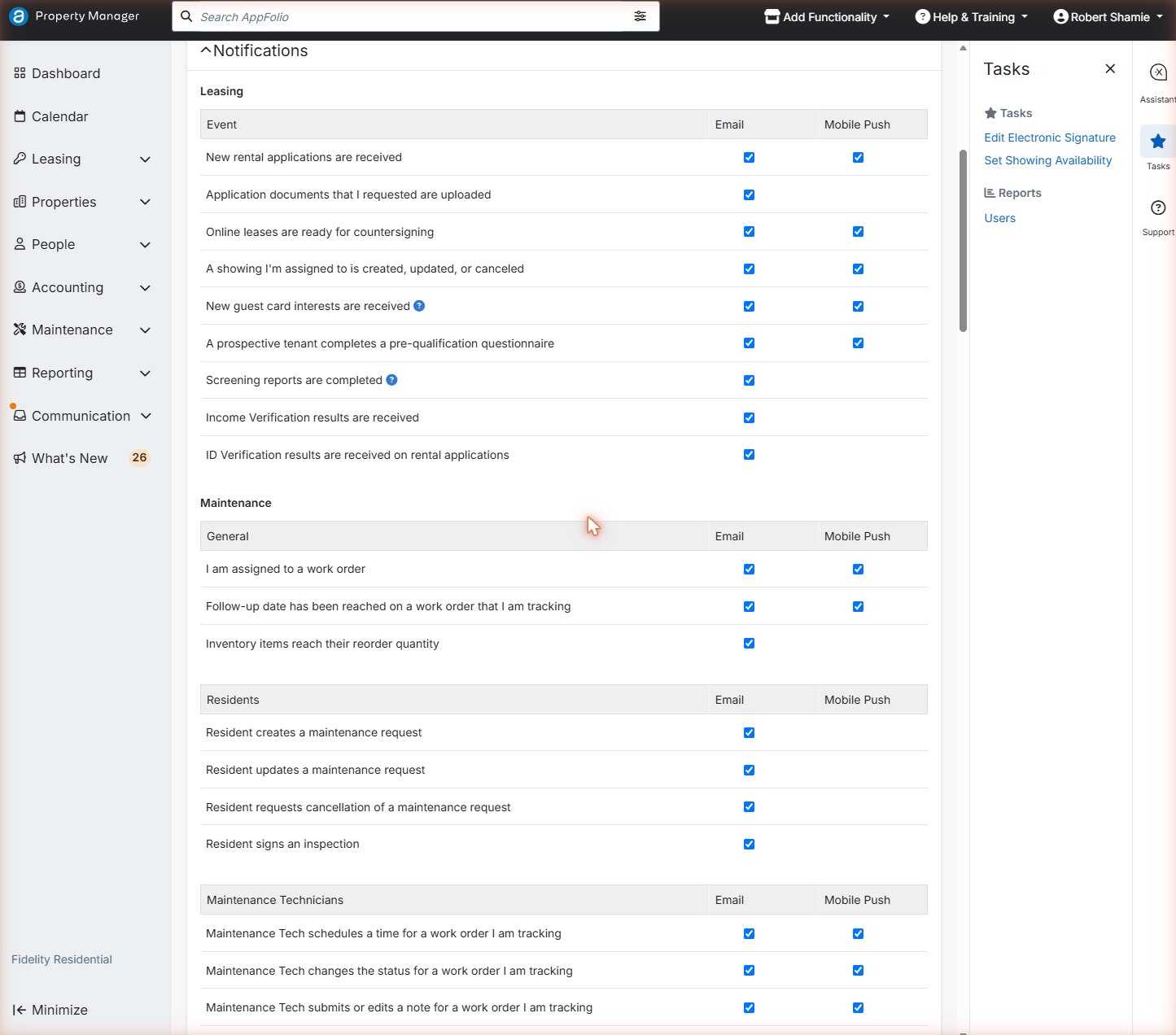
Choose which events AppFolio emails you about, or sends to your phone as a push notification.
Steps
- Click your name in the top-right corner, then My Settings.
- Scroll to Notifications → Leasing.
- Tick both Email and Mobile Push for:• A showing I'm assigned to is created, updated, or canceled (the most important one)
• New guest card interests are received
• New rental applications are received - Under Communication, tick A new text message is received for an inbox conversation I am assigned to.
- Scroll to the bottom and click Save.
 1
2
3
1
2
3
- 1Showing alerts. Leave these on.
- 2Email column
- 3Mobile Push column. Sends alerts to the phone app.
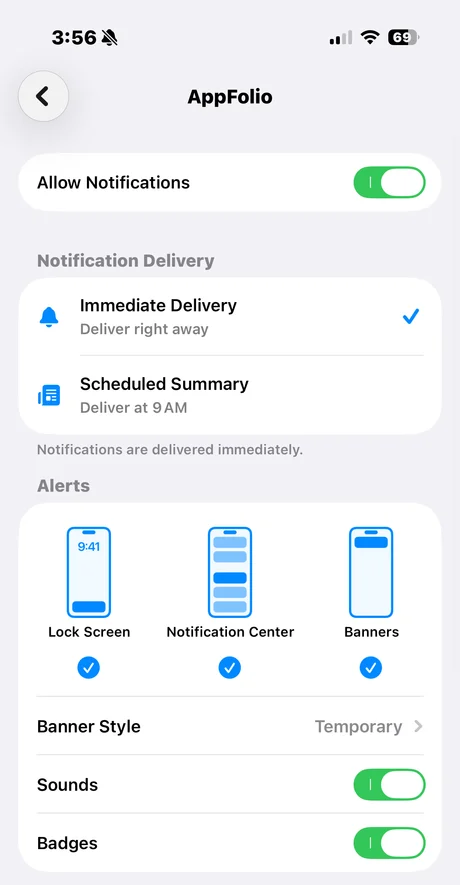
Push alerts need two switches. AppFolio's Mobile Push boxes above (set once, from any browser), and your phone allowing the app to notify you:
- iPhone: Settings → Notifications → AppFolio → Allow Notifications on.
- Android: Settings → Apps → AppFolio Property Manager → Notifications → on.
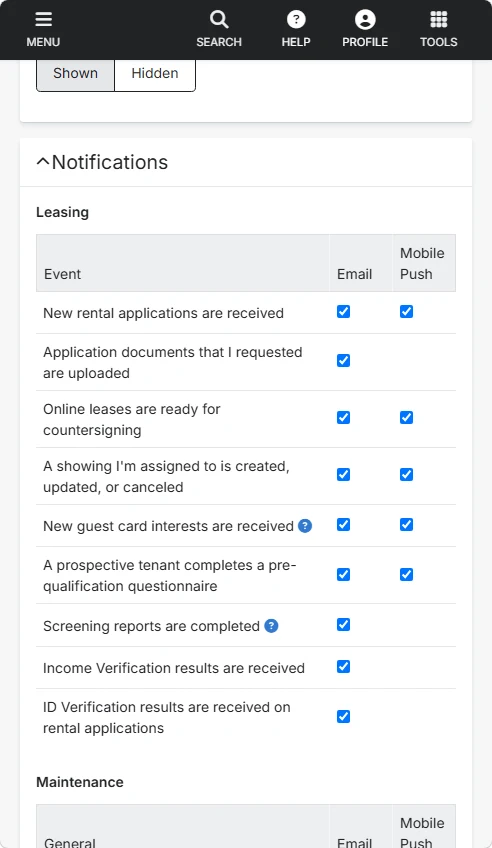
Below: your phone’s own notification settings.
On Android the screen looks different, but the switch has the same name.
Common mistakes
- Turning off “showing assigned to me” emails. You'll miss bookings and changes.
- Changing General Settings. Those are company-wide; only change My Settings.
Set your showing hours
Your weekly availability is the only list of times prospects (and our AI caller) can book. No hours means no showings.
Steps
- Click your name (top right) → My Settings. In the Tasks panel on the right, click Set Showing Availability.Shortcut: the Calendar page has the same link.
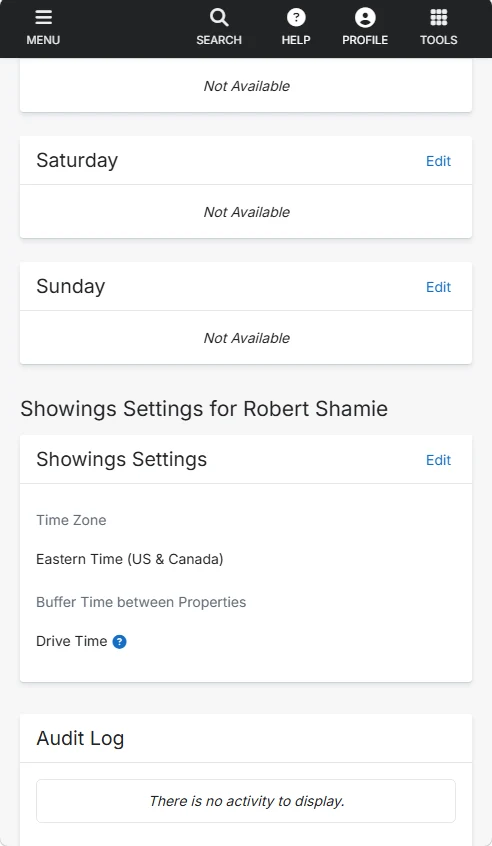
- Check Showings Settings at the bottom: set Time Zone to Central Time, plus your Buffer Time and Drive Time so you're never booked in Decatur and Huntsville back-to-back.
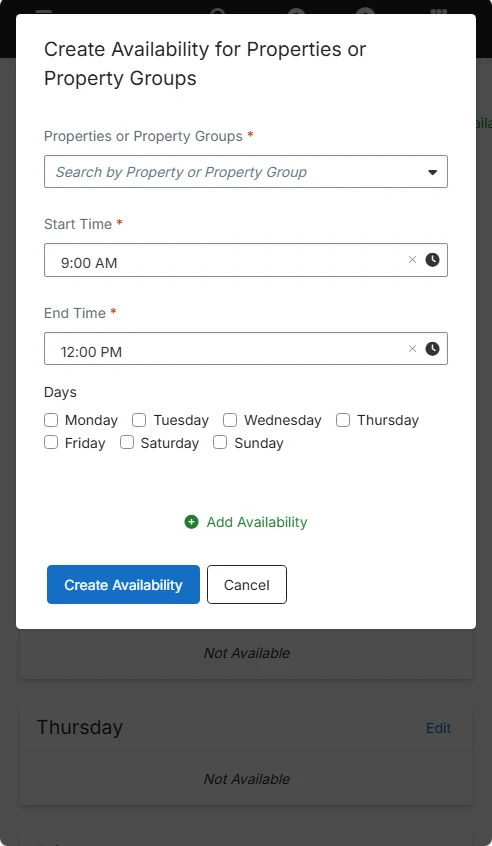
- Click Bulk Add Availability. Pick the property group (Alabama) or specific properties, set a start and end time, tick the days, and click Create Availability.
- Use Edit on a single day to adjust or remove hours. A day with no hours shows Not Available.
- Optional: under Sync Personal Calendar, connect Google or Outlook so busy time blocks bookings and showings land on your own calendar.
- Update your hours every week, especially before weekends, when most people want to look.
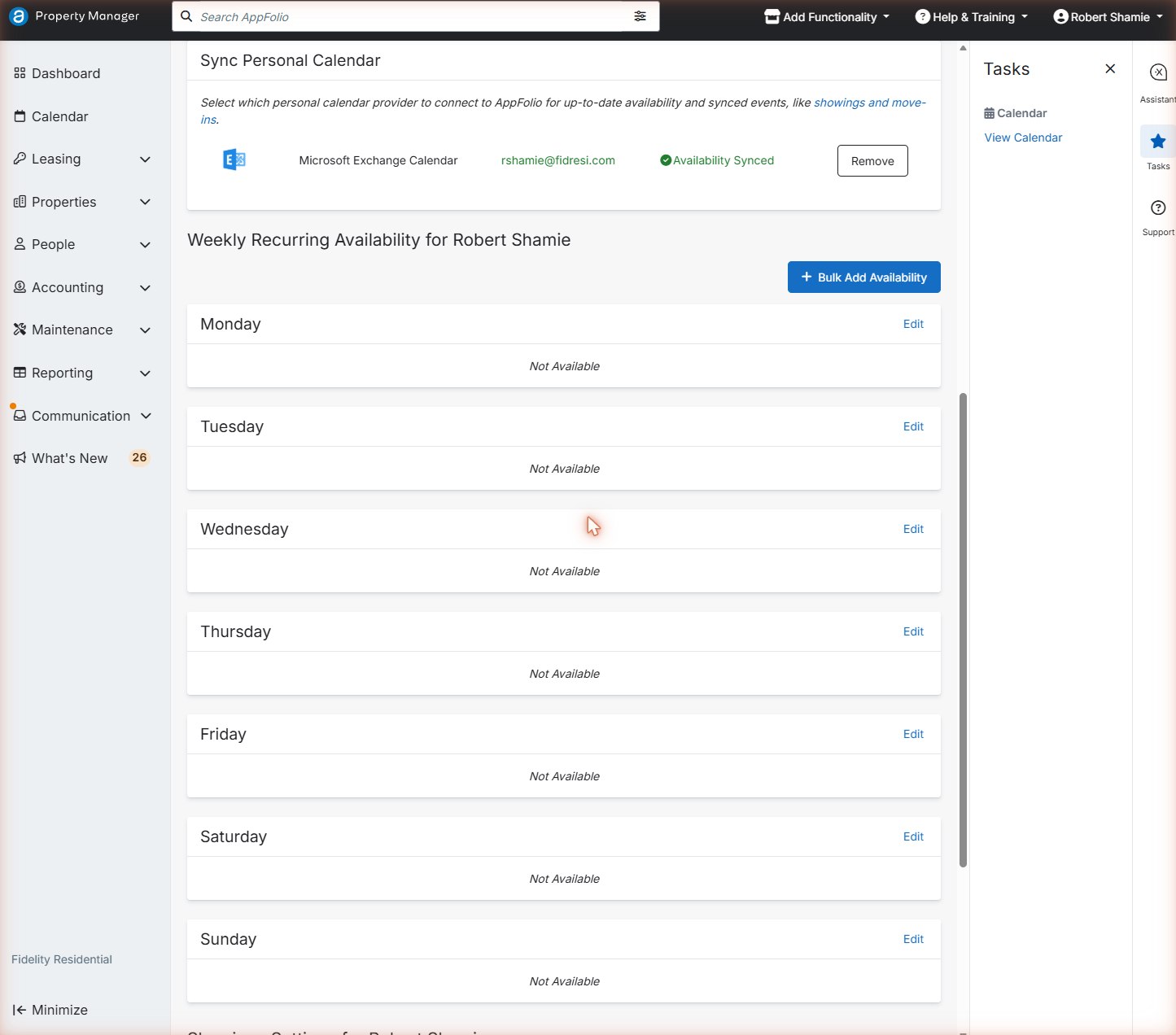 123
123- 1Bulk Add Availability. The fastest way to set a whole week.
- 2Edit one day
- 3“Not Available” means no one can book you that day
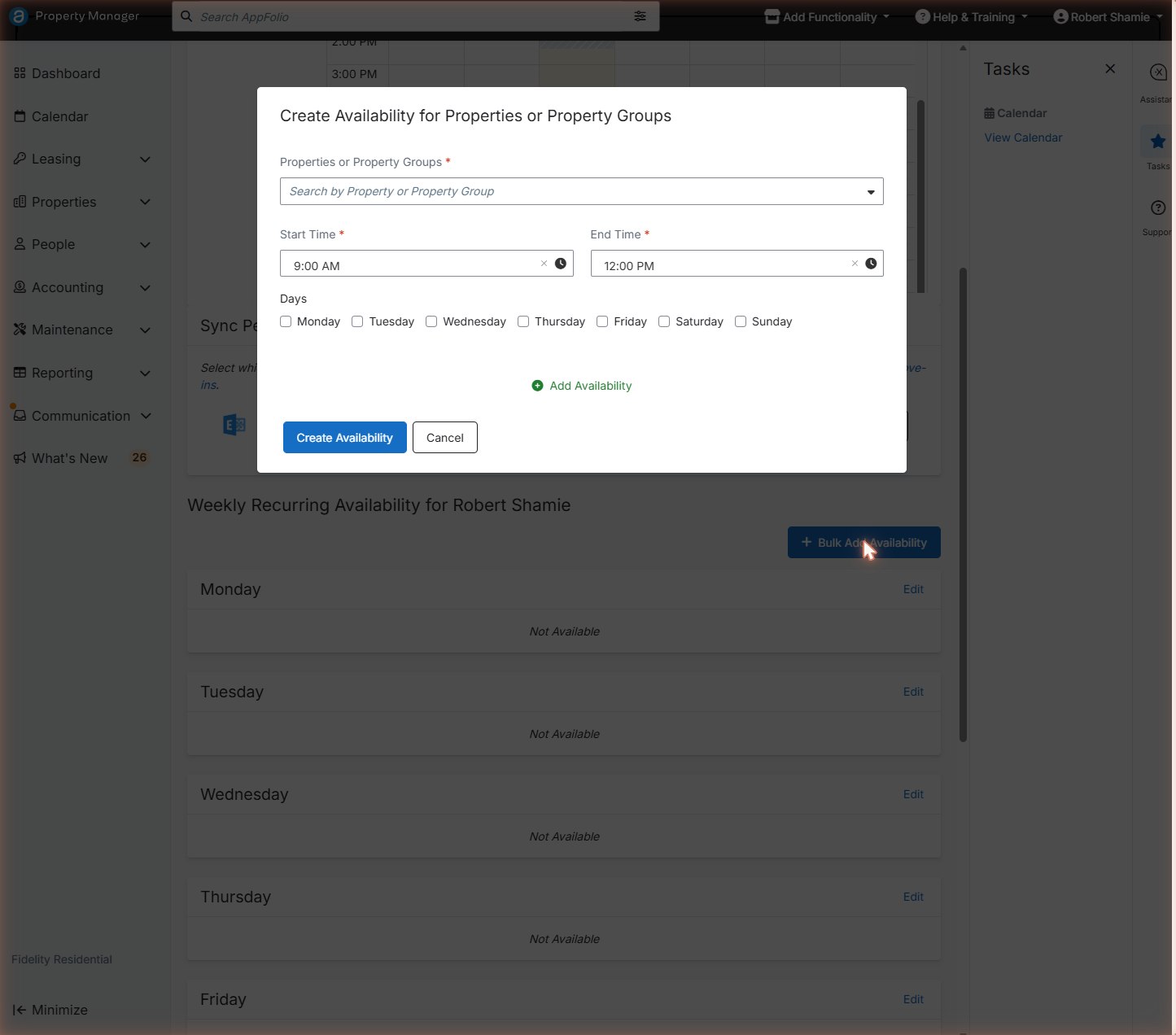 1234
1234- 1Choose the property group (Alabama) or properties
- 2Start and end time (Central)
- 3Tick the days
- 4Save with Create Availability
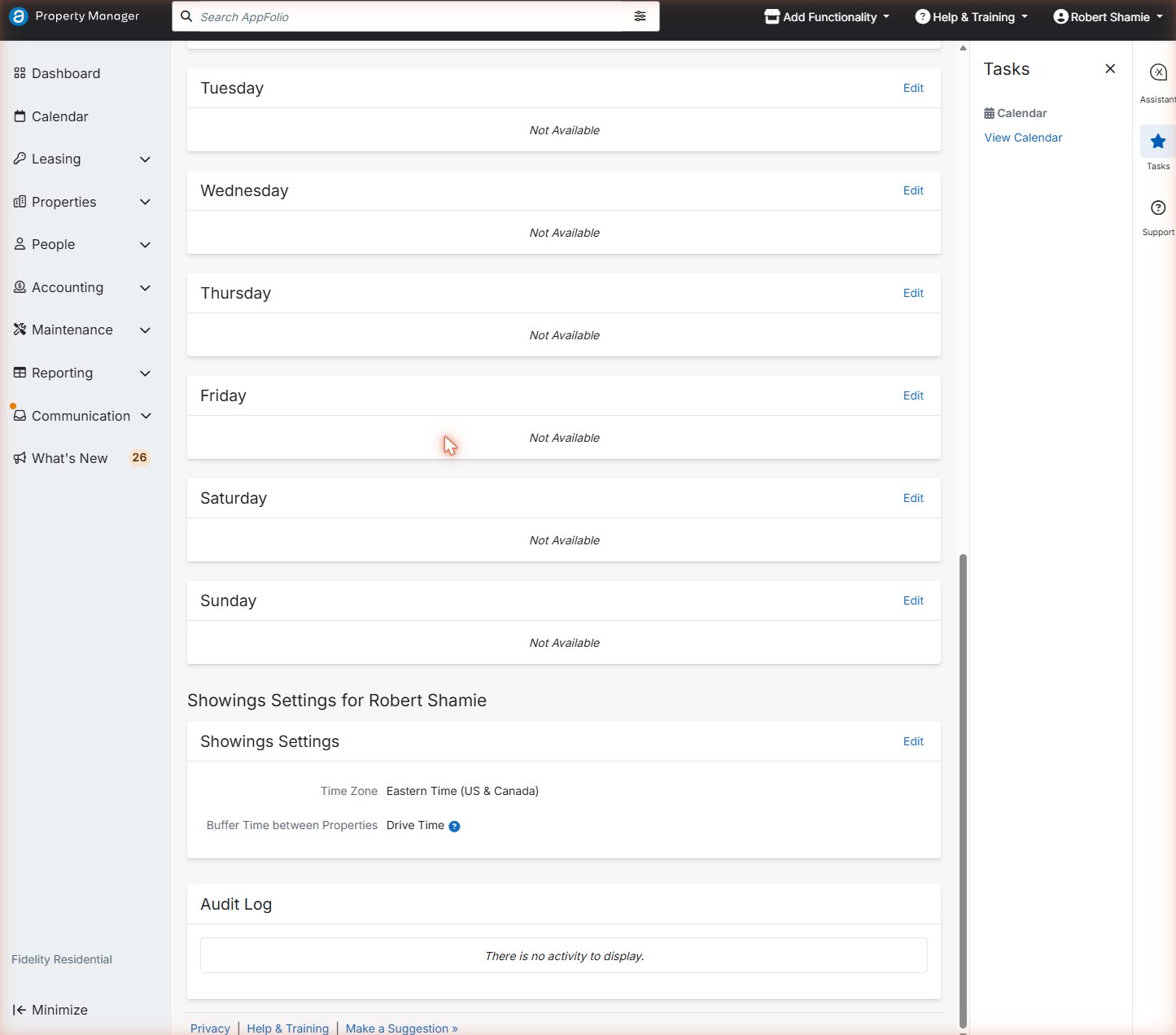
Setting hours is easiest on a computer. On your phone, open fidelityresidential.appfolio.com in Safari or Chrome, sign in, tap Profile → My Settings, then Tools → Set Showing Availability, and follow the same steps. Turn the phone sideways if the page feels cramped.
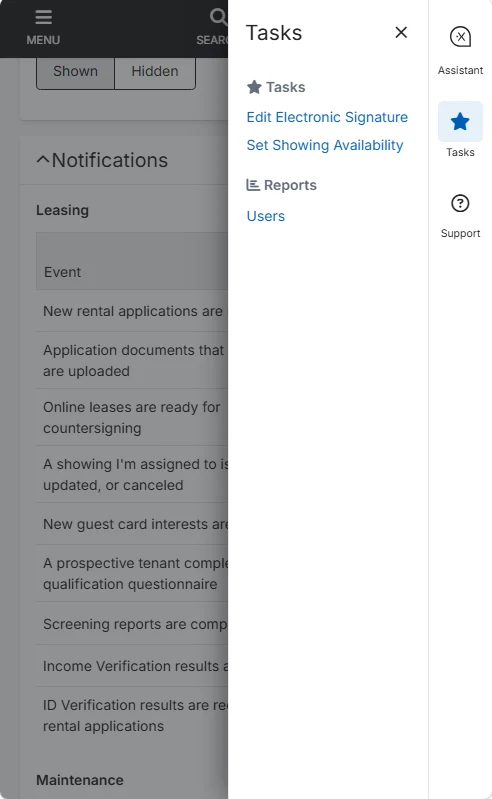
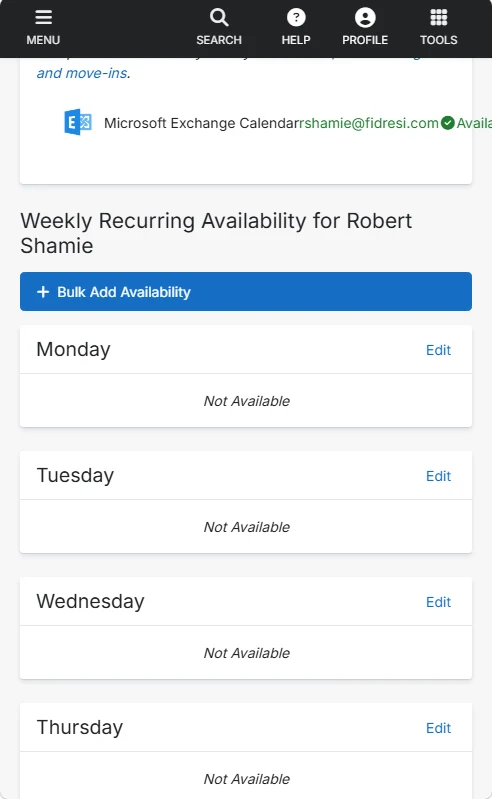
Quick check: you're away Saturday. What do you change?
Edit Saturday (or remove those hours) in Weekly Recurring Availability before anyone books it. If a showing is already booked that day, tell us right away. Blocking time only stops new bookings.
Daily AppFolio work
The screens you'll use every day.
The calendar
See every showing, and who it's assigned to, by week, day, month or list.
Steps
- Click Calendar in the left menu. It opens on the Alabama properties.
- Switch views with Month · Week · Day · Agenda. Agenda is the easiest list for a busy day.
- Click a purple showing to see the time, home, prospect, phone, Assigned to and Status. Click the guest card name to open it.
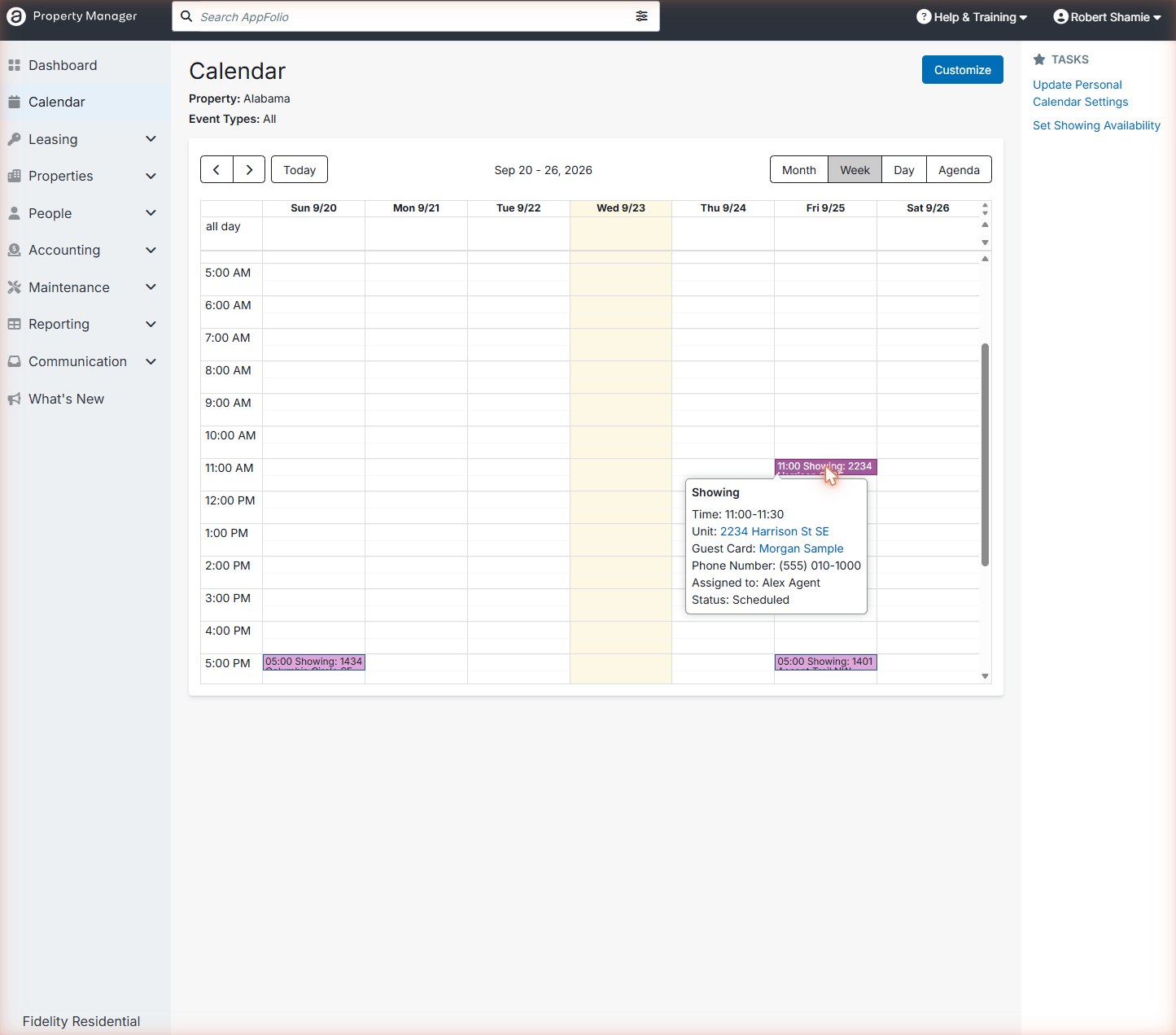 123
123- 1View switcher
- 2A booked showing
- 3Details: check Assigned to and Status
On your phone: open the same Calendar in your phone's browser, or check your synced Google or Outlook calendar.
The Vacancies page
Every home currently for rent, with its rent, size, available date and photos. It's your source of truth for prices.
Steps
- Left menu: Leasing → Vacancies.
- Each card shows the address, BD/BA, SQ. FT., RENT and AVAILABLE date. Click the address for full details and photos.
- Quote rent and availability only from this page (or the public listing). Never from memory.
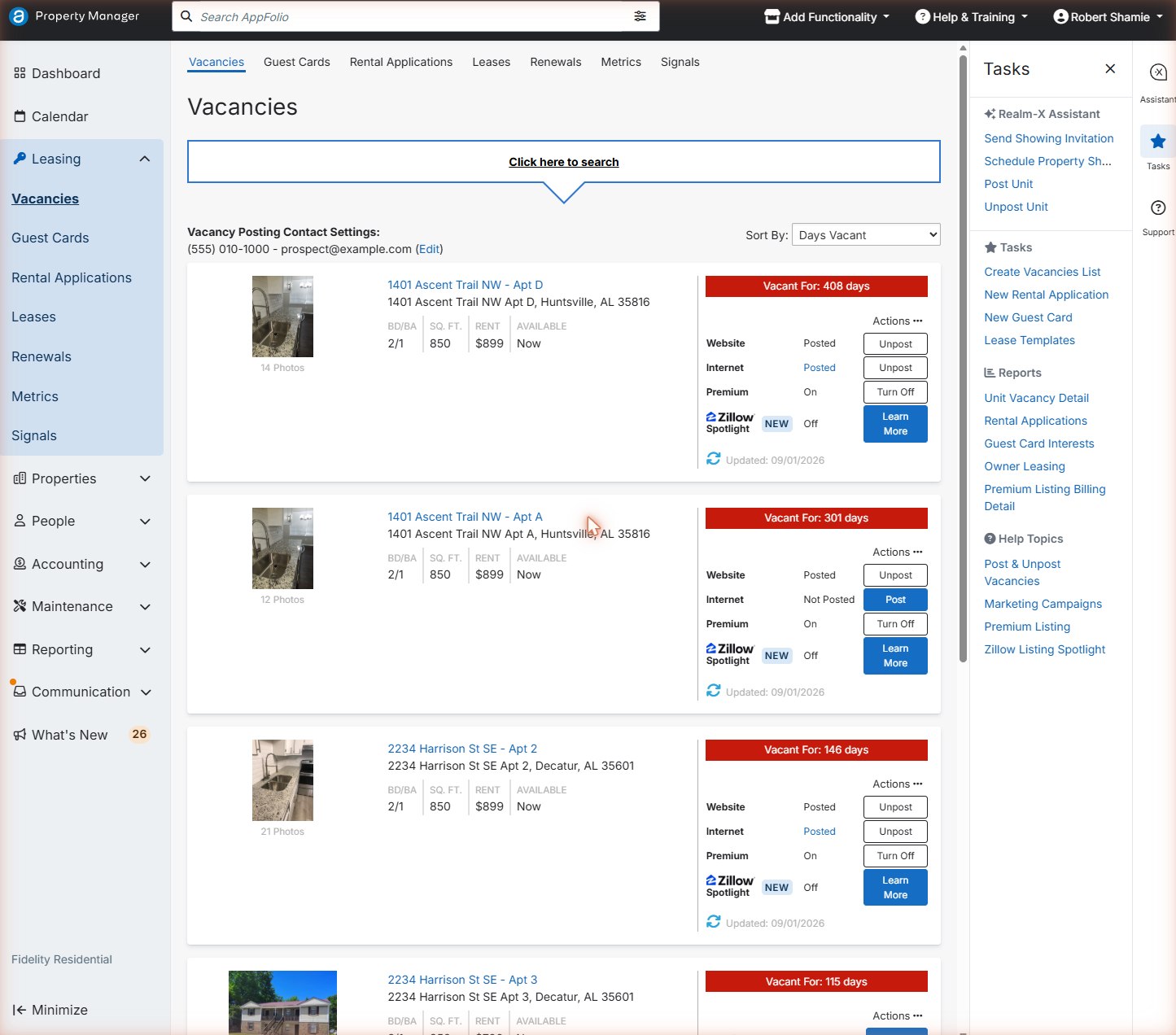 1
2
1
2- 1Beds/baths, size, rent and availability. Quote from here.
- 2Website / Internet / Premium posting controls. Don't click these. They change what's advertised and what we pay for.
Guest cards
A guest card is one prospect's file: contact info, the homes they asked about, showings, and every text, email and call.
Find a guest card
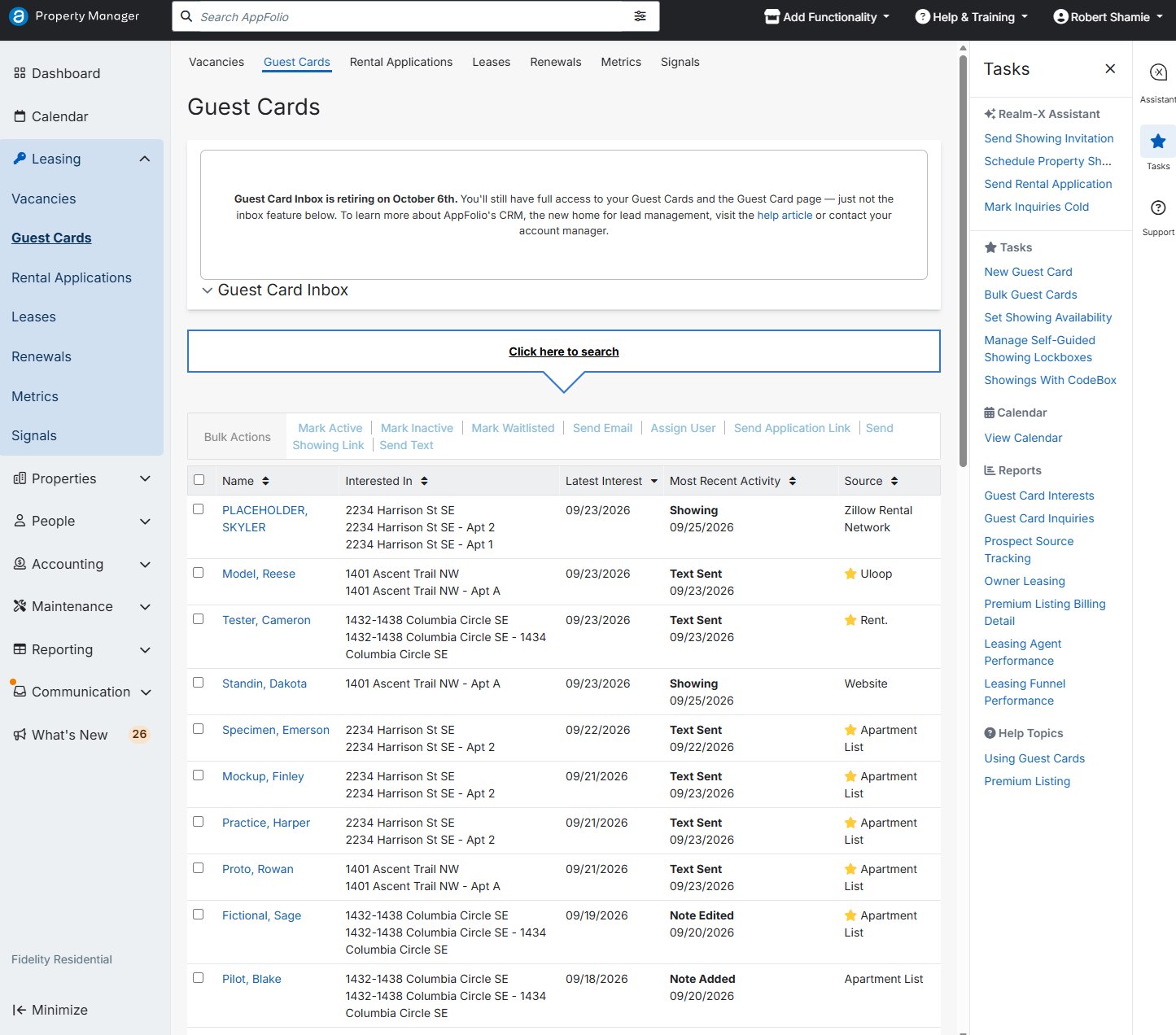
- Left menu: Leasing → Guest Cards. Newest activity is at the top.
- Use Click here to search to filter by name, property or date, or type a name into the Search AppFolio bar at the top of any page.
- Click a name to open the card.
Read a guest card, top to bottom
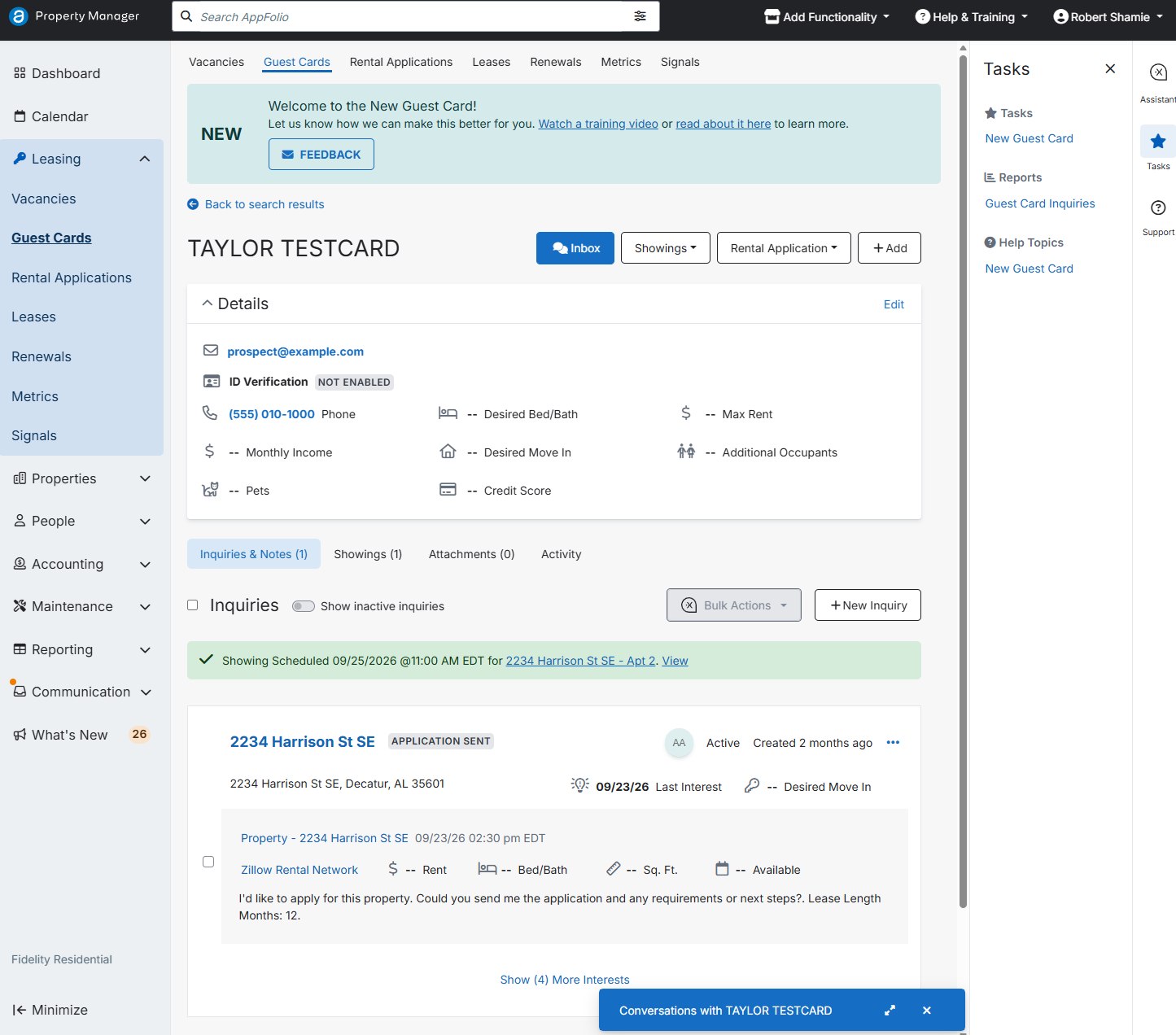 1234
567
1234
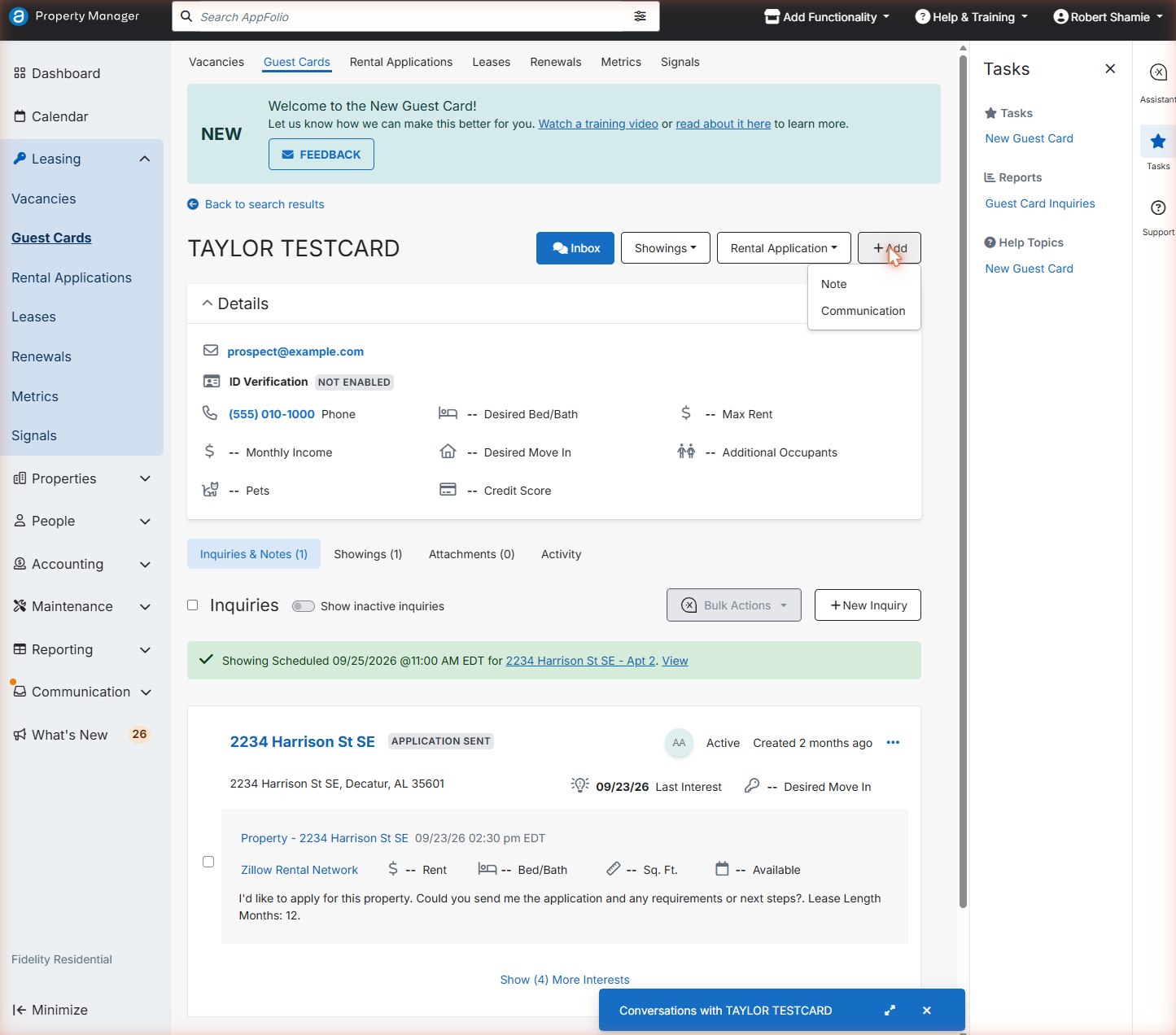
567- 1Inbox: opens the text and email conversation
- 2Showings: schedule a showing or send an invitation
- 3Rental Application: send one, or enter a paper one
- 4Add: a note or a record of a call
- 5Contact details and what they're looking for
- 6Booked showing banner, and the home they asked about (with “APPLICATION SENT” status)
- 7Conversation bar: click to open the message thread
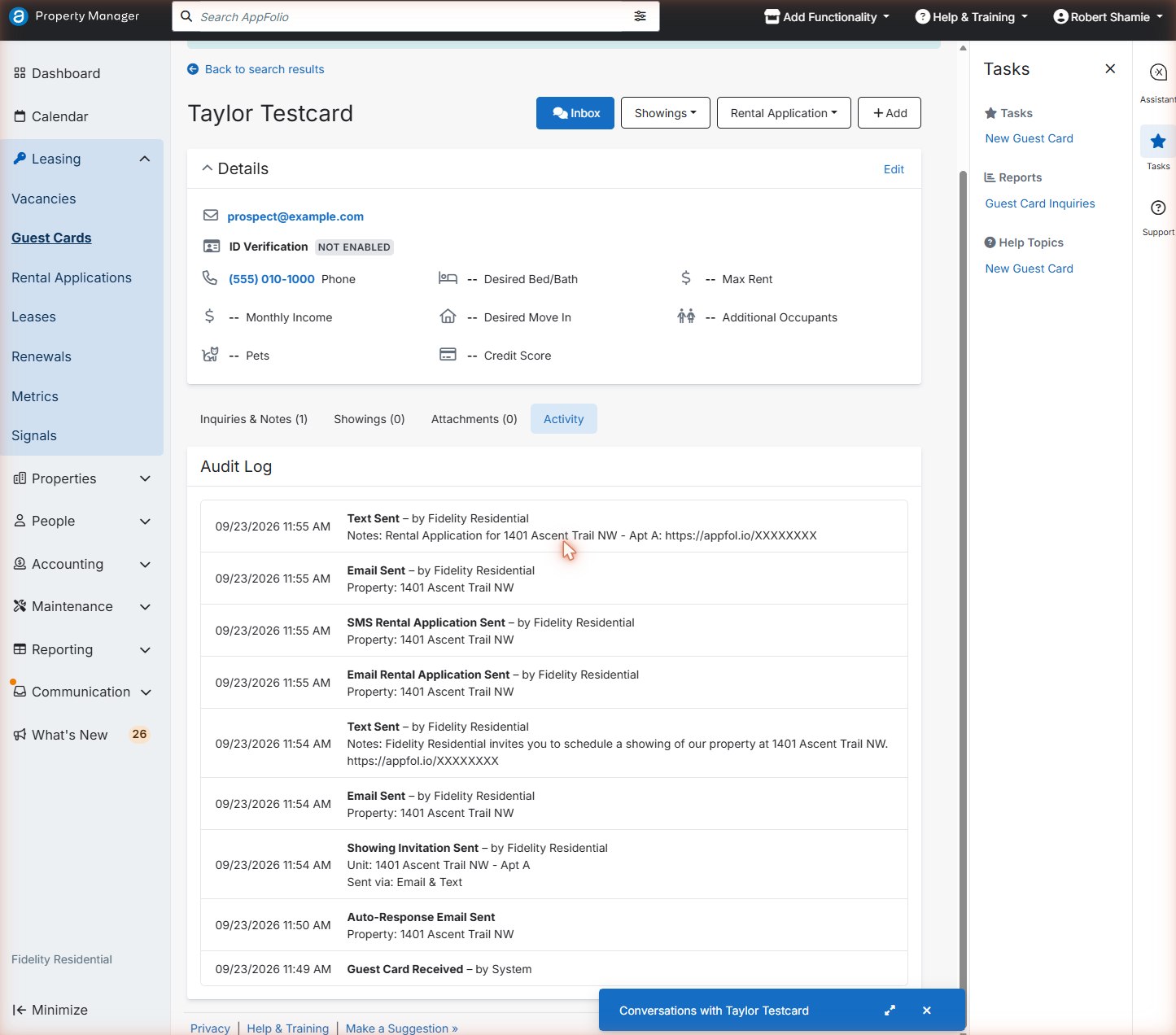
The Activity tab: always check it first
Common mistakes
- Texting a prospect from your personal phone. Nothing gets logged, and they get replies from two numbers.
- Trying to delete a guest card. You can't, and shouldn't; ask us to mark it inactive.
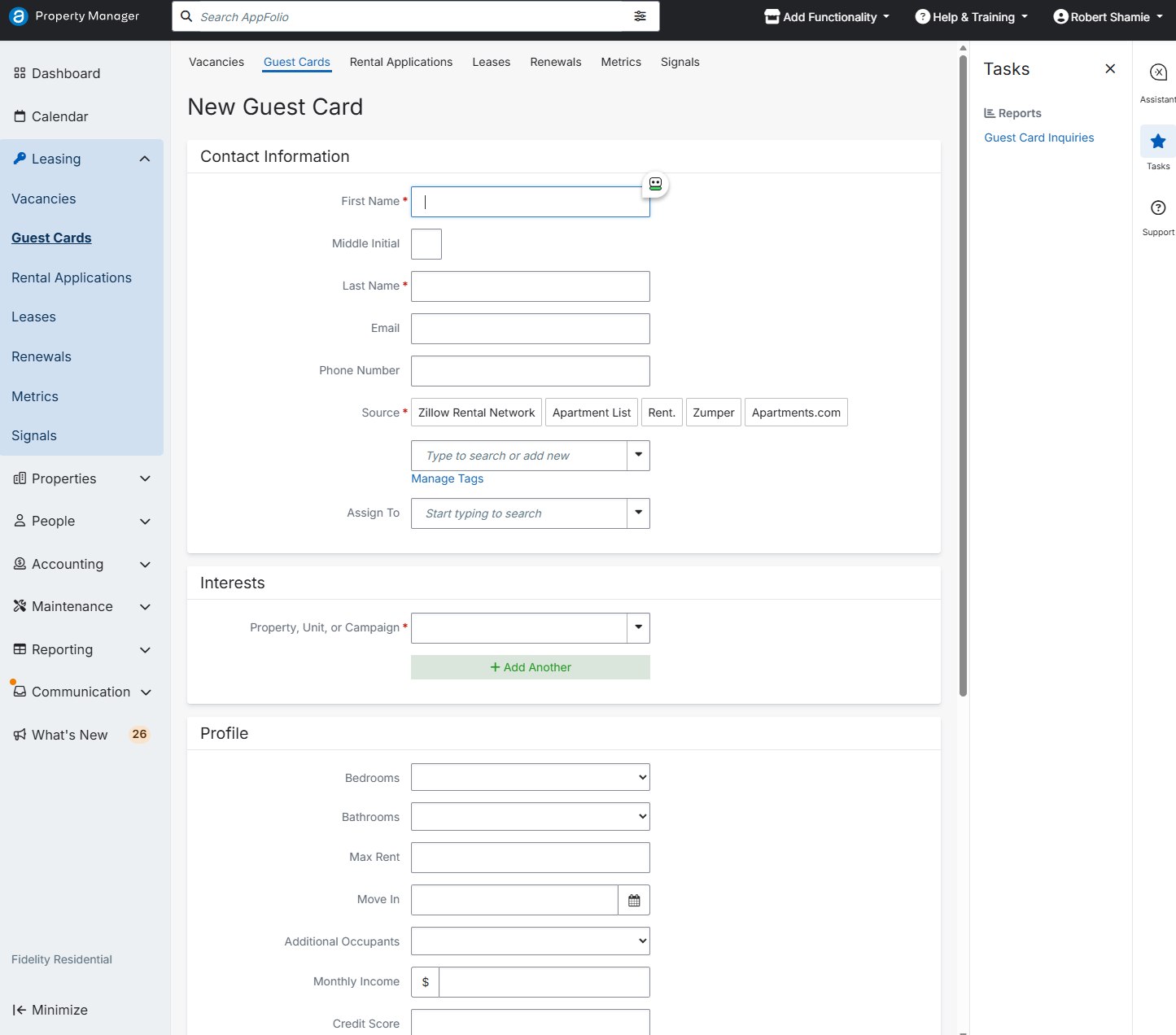
Create a guest card
Most guest cards create themselves. Make one by hand only for a walk-in, a referral, or a caller whose card doesn't exist yet.
Steps
- Search first with the top search bar (name, phone, or email). If the person exists, use their card.
- Go to Leasing → Guest Cards and click New Guest Card in the Tasks panel.
- Enter First Name, Last Name, Email and Phone Number. Pick a Source (for example “Yard sign” or “Walk-in”).
- Under Interests, choose the property or unit. Fill in what you know: bedrooms, move-in, pets.
- Save. Then add a note about how you met them.
The unified inbox
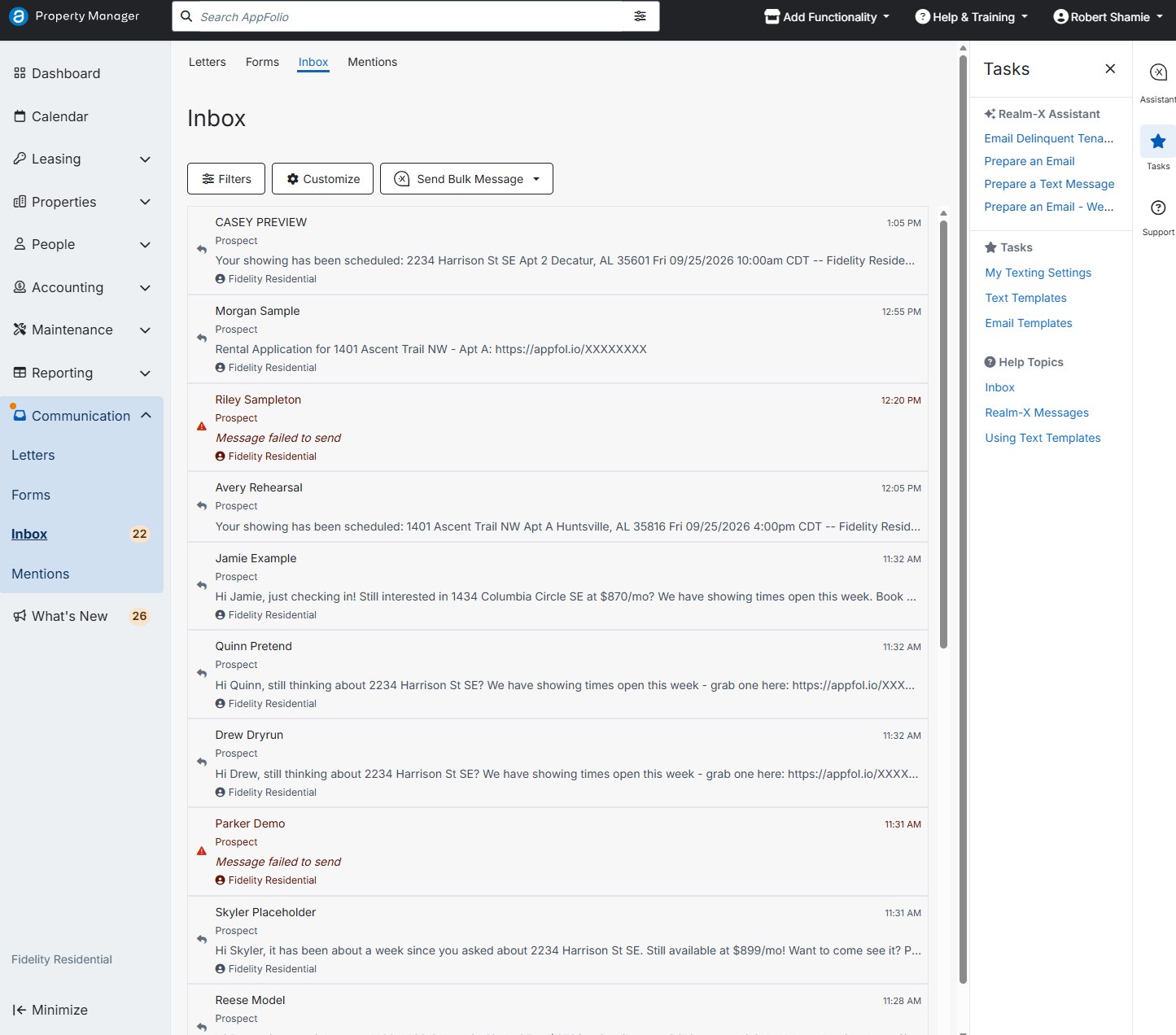
One list of every text conversation, newest first: prospects, tenants and vendors.
Steps
- Left menu: Communication → Inbox. The number shows unread conversations.
- Use Filters to show only Prospect conversations. Tenant and vendor messages aren't yours.
- Click a conversation to read and reply. A red Message failed to send usually means a bad number or an opted-out prospect.
 1234
1234- 1Filters: show prospects only
- 2Unread count
- 3“Prospect” label: these are yours
- 4Failed message: check the number, or whether they opted out
Email and text a guest
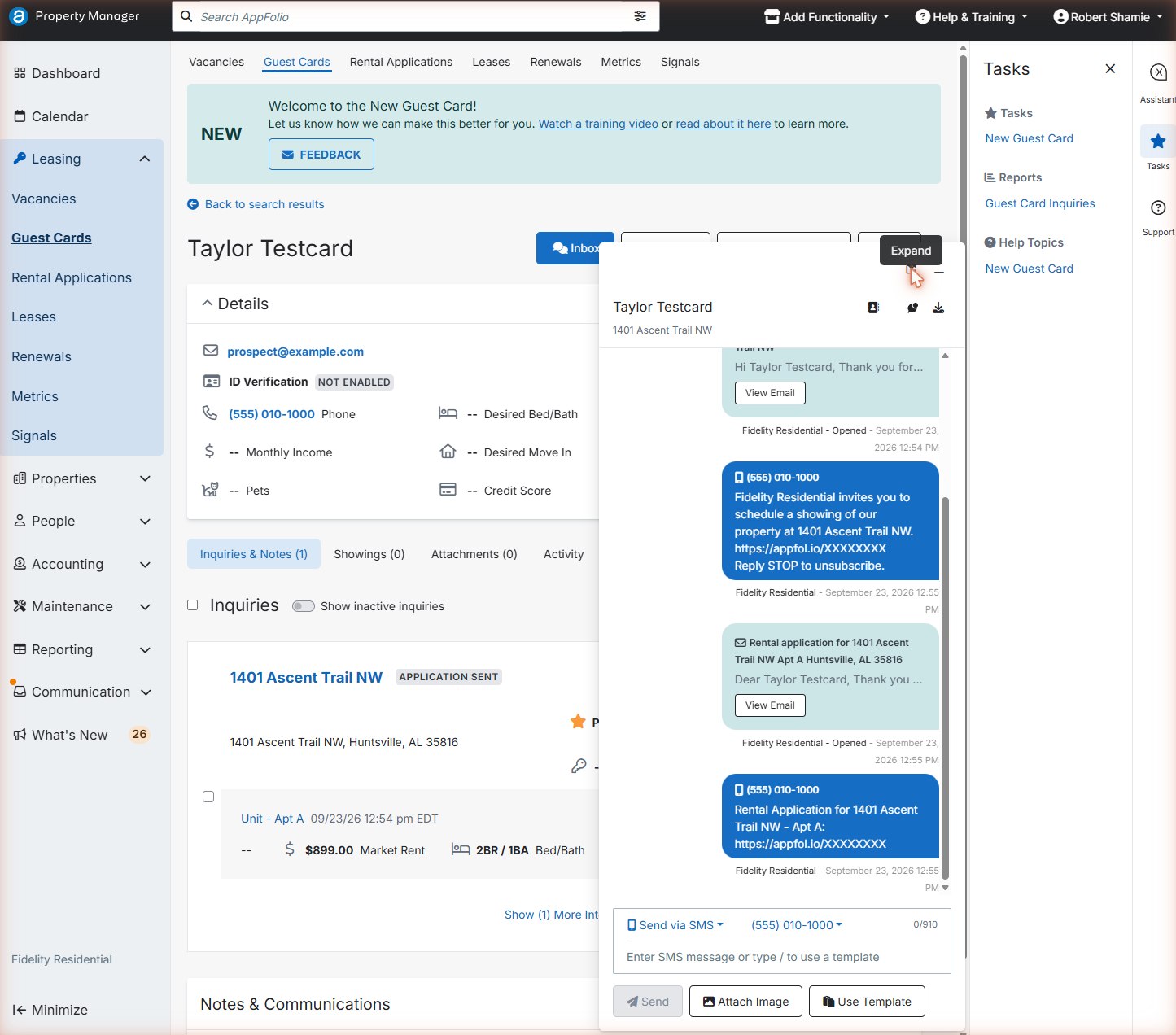
Always message prospects from inside AppFolio, so every word is saved on their guest card.
Steps
- Open the guest card and click Inbox (or the blue conversation bar at the bottom).
- At the bottom, the switch reads Send via SMS. Click it to change to email if you need to.
- Type your message, or click Use Template, then click Send.
 1234
1234- 1Automatic texts: showing link and application link (“Reply STOP to unsubscribe”)
- 2Send via SMS or Email
- 3Your message
- 4Send
- Only text people who gave us their number for this home.
- If someone replies STOP (or “unsubscribe”, “quit” and so on), never text them again, from AppFolio or your own phone. Email or call only if they asked you to, and tell us.
- If a prospect asks you to stop calling or emailing, stop, note it on the card, and tell us the same day. The system can't hear that request on its own.
Quick check: a prospect texts “we found another place, thanks”. What do you do?
Reply kindly, add a note, and tell us, so the automatic follow-up can be stopped for them. A reply by itself does not stop the system.
Send showing invitations and rental applications
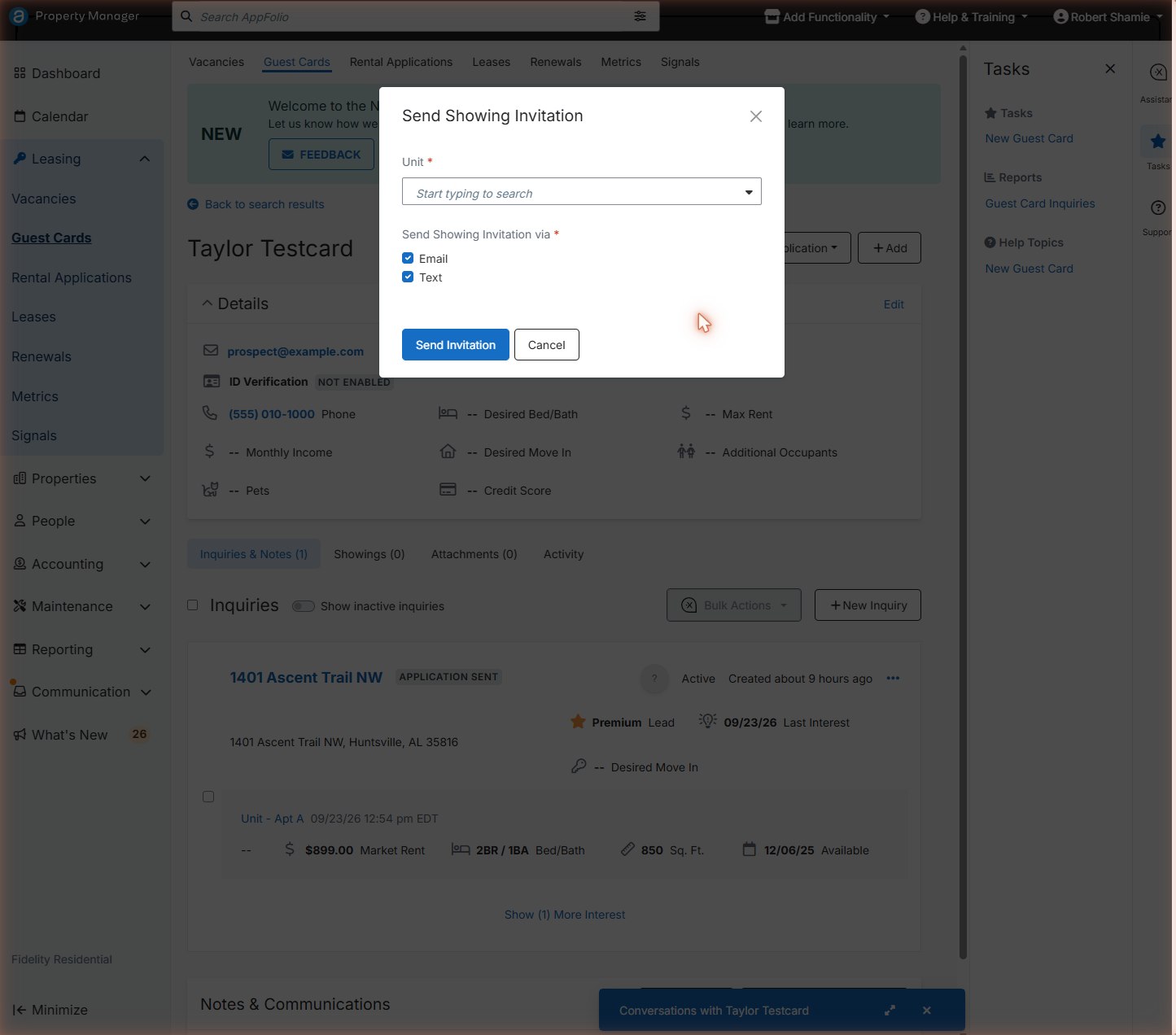
A showing invitation texts and emails the prospect a personal link to pick a time. A rental application sends them the link to apply.
Send a showing invitation
- Open the guest card → Showings → Send Showing Invitation.
- Pick the Unit. Leave Email and Text ticked (untick Text if they opted out).
- Click Send Invitation. They'll get a link that shows your open hours.
Send a rental application
- Guest card → Rental Application → Send Rental Application.
- Check the Unit or Campaign and the recipient email. Tick Send an SMS with a rental application link if they'd like a text too.
- Click Send. At a showing, send it before you leave so they can start on their phone right away.
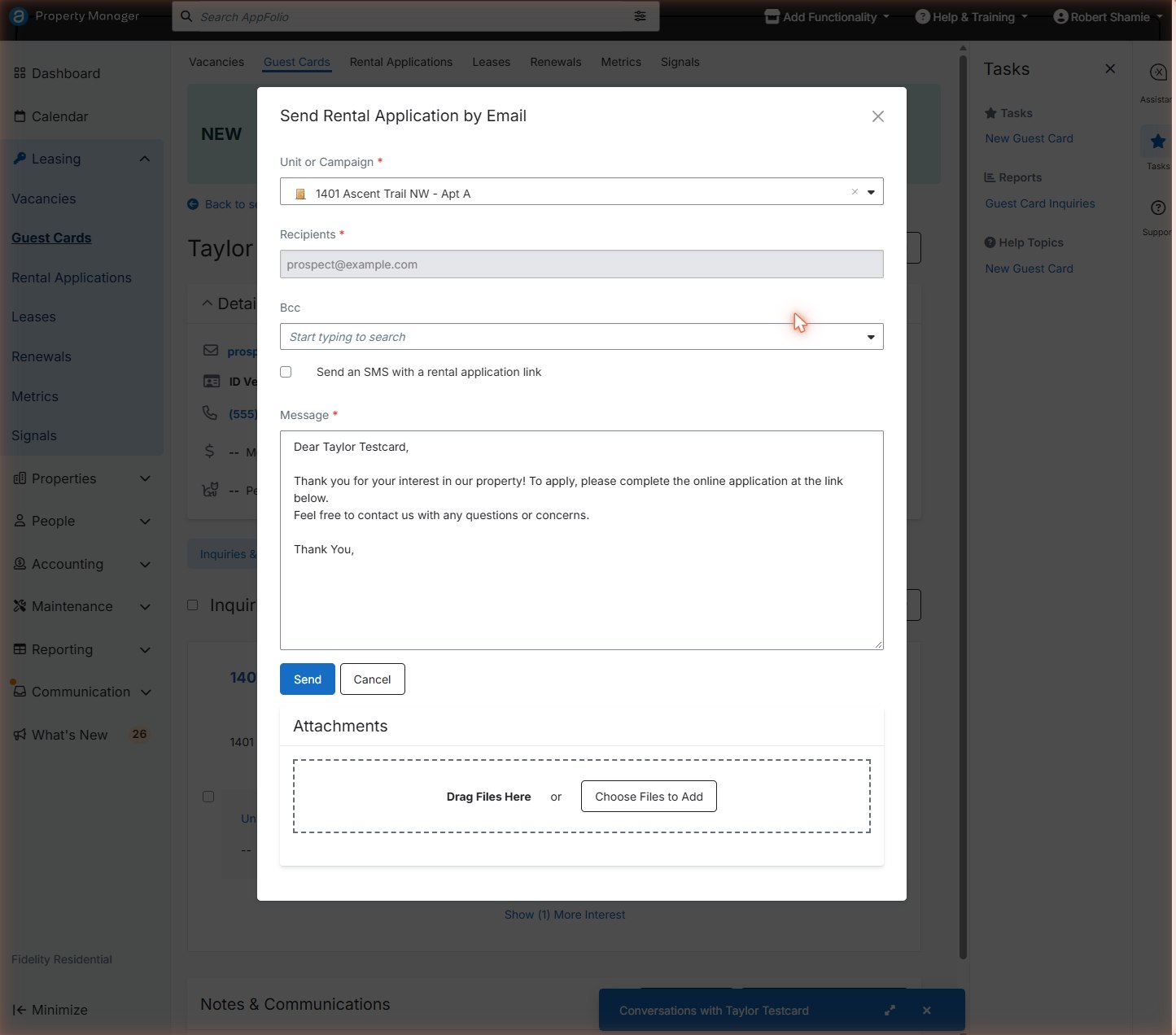 123
123- 1The right home
- 2Optional text with the link
- 3Send
Common mistakes
- Sending an invitation to a brand-new lead. The system did it minutes ago.
- Re-sending an application because a pop-up seemed to hang. Check Activity for “Rental Application Sent” first.
Schedule, reschedule or cancel a showing
When you and a prospect agree on a time by phone or at a showing, book it yourself. Change it with Edit, and cancel only when they really cancel.
Schedule a showing (you book it for them)
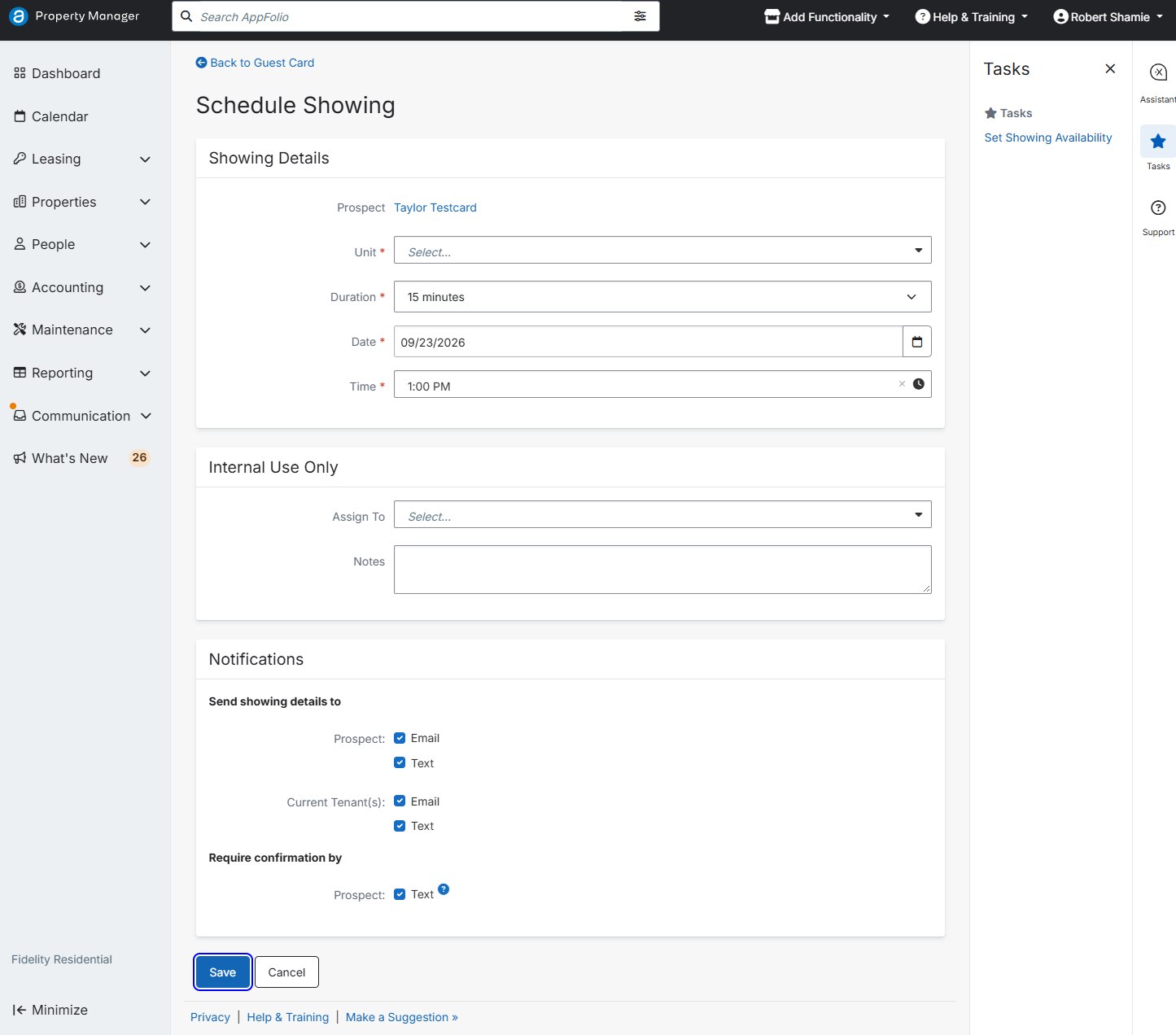
- Guest card → Showings → Schedule a Showing.
- Choose the Unit and Duration (30 minutes is typical). Pick a time from the availability grid, or type the Date and Time.
- Under Internal Use Only, set Assign To to yourself.
- Leave Send showing details to Prospect: Email and Text ticked, and Require confirmation by Prospect: Text on. Click Save.
Reschedule (change the time)
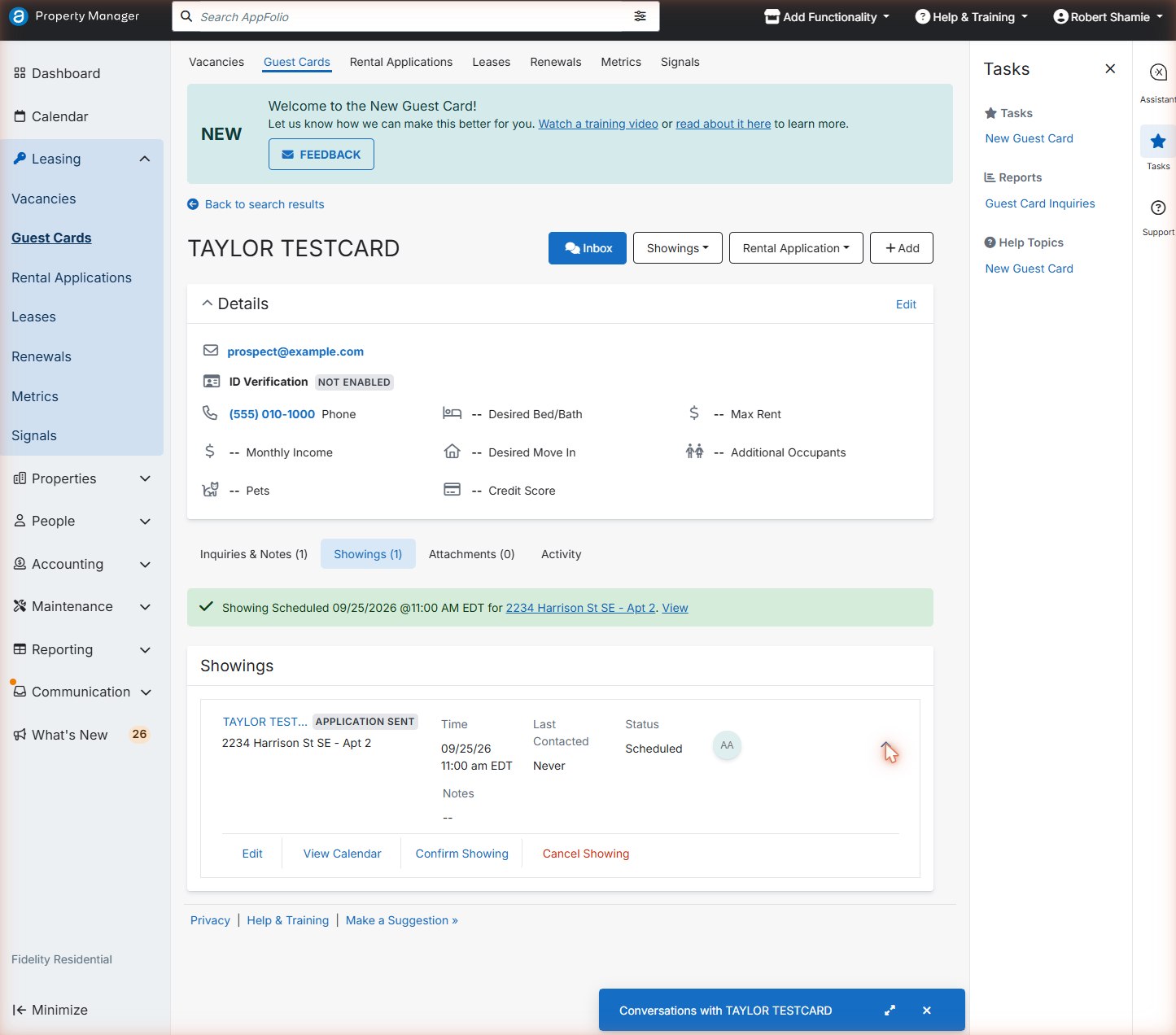
- Guest card → Showings tab → click the arrow on the showing to expand it → Edit.
- Pick the new time in the grid, or change Date and Time. Keep the notification boxes ticked so they're told.
- Click Save. The system moves its reminders to the new time on its next daily check.
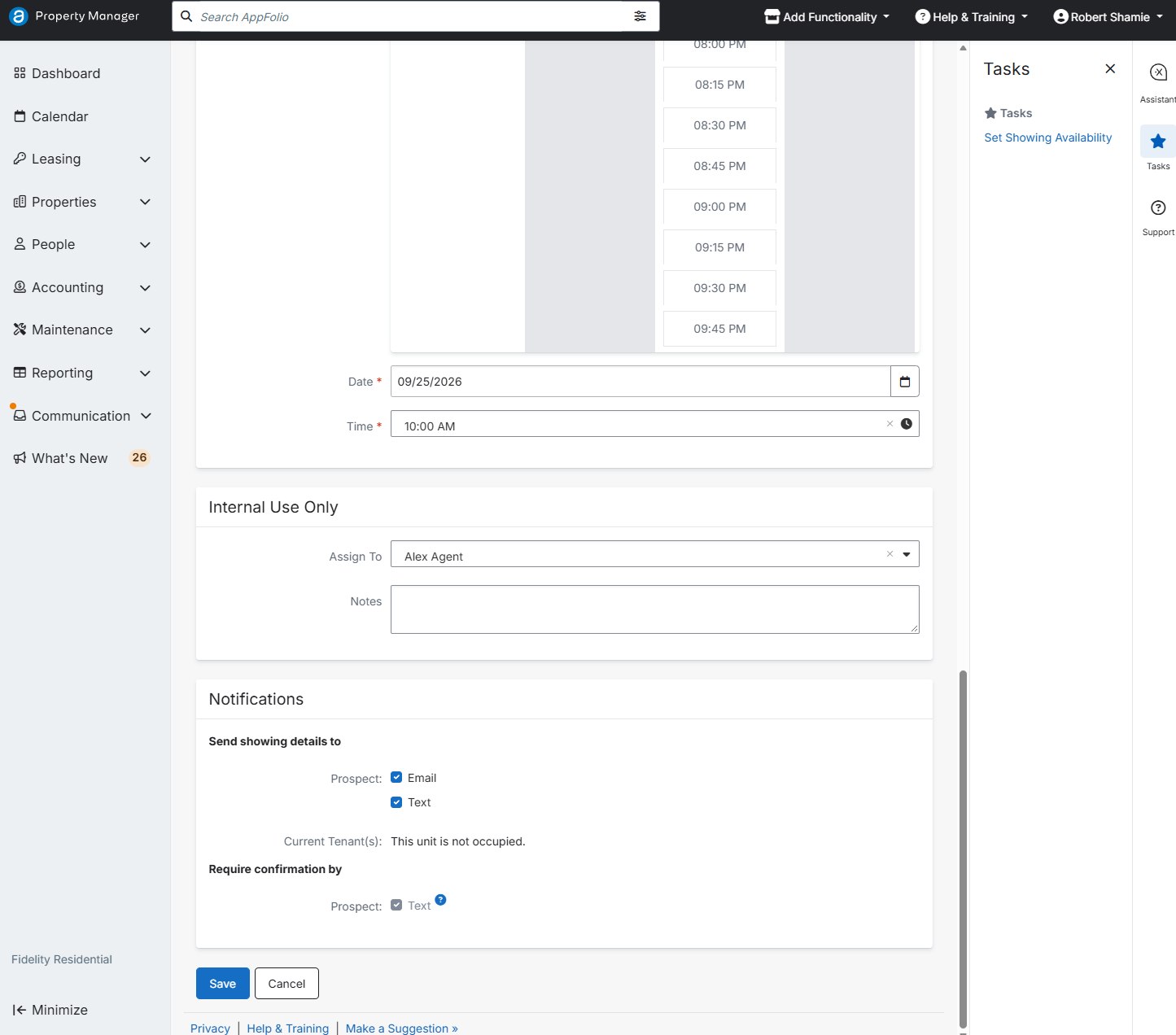 12345
12345- 1New date
- 2New time
- 3Assigned agent
- 4Confirmation text stays on
- 5Save
Cancel
- Only when the prospect says they're not coming and don't want another time. If they just want a different time, use Edit instead.
- Showings tab → expand the showing → Cancel Showing. Add a note on the card saying why.
Quick check: the prospect says “Can we do 5 instead of 3?”
Edit the showing and change the time. Don't cancel it, or they'll start getting “we noticed your showing was cancelled” messages.
Mark a No Show
If a prospect confirmed but didn't come, record it in AppFolio so everyone knows what really happened.
Steps
- Wait at least 15 minutes past the time, and call and text them once from AppFolio.
- Open their guest card → Showings tab → expand the showing.
- Click Mark as No Show. (This appears once the showing time has passed.)
- Add a note: how long you waited and how you tried to reach them.
- Message us the same day (see the warning below).
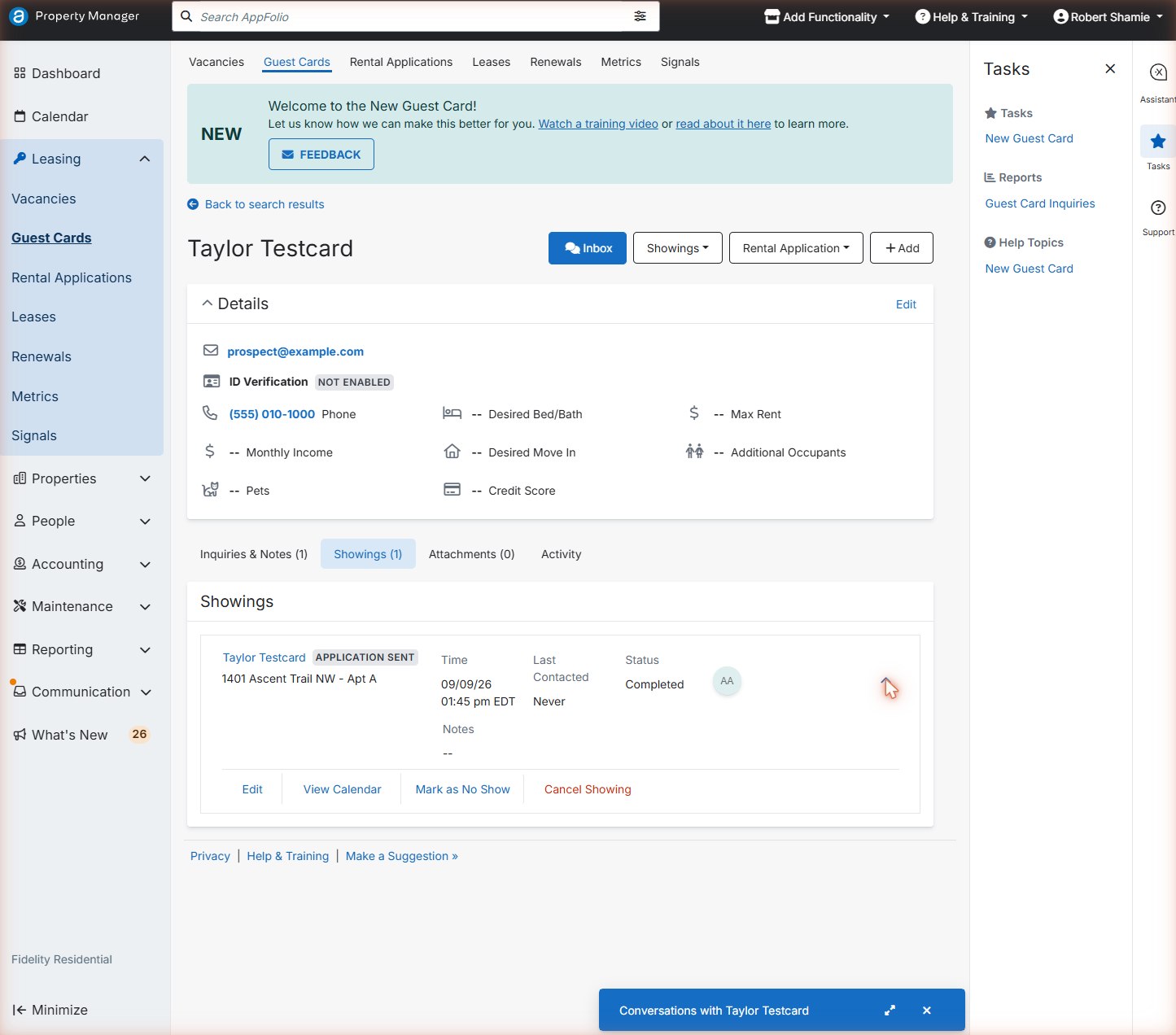 12
12- 1Mark as No Show
- 2Status: AppFolio shows Completed for past showings until you change it
- Marking No Show when the prospect never confirmed, or cancelled ahead of time. Use it only for “confirmed, then didn't come”.
Take an application by hand
For someone who can't apply online. You type their paper application into AppFolio.
Steps
- Open their guest card (create one first if needed) → Rental Application → Enter Rental Application.No guest card? Leasing → Rental Applications → Tasks panel → New Rental Application.
- Type in every field from the paper form: unit, move-in date, contact info, where they've lived, landlords, income. Screening can't run until it's complete.
- Upload a photo or scan of the signed paper form as an attachment.
- Save, then message us. AppFolio doesn't alert anyone about manually entered applications.
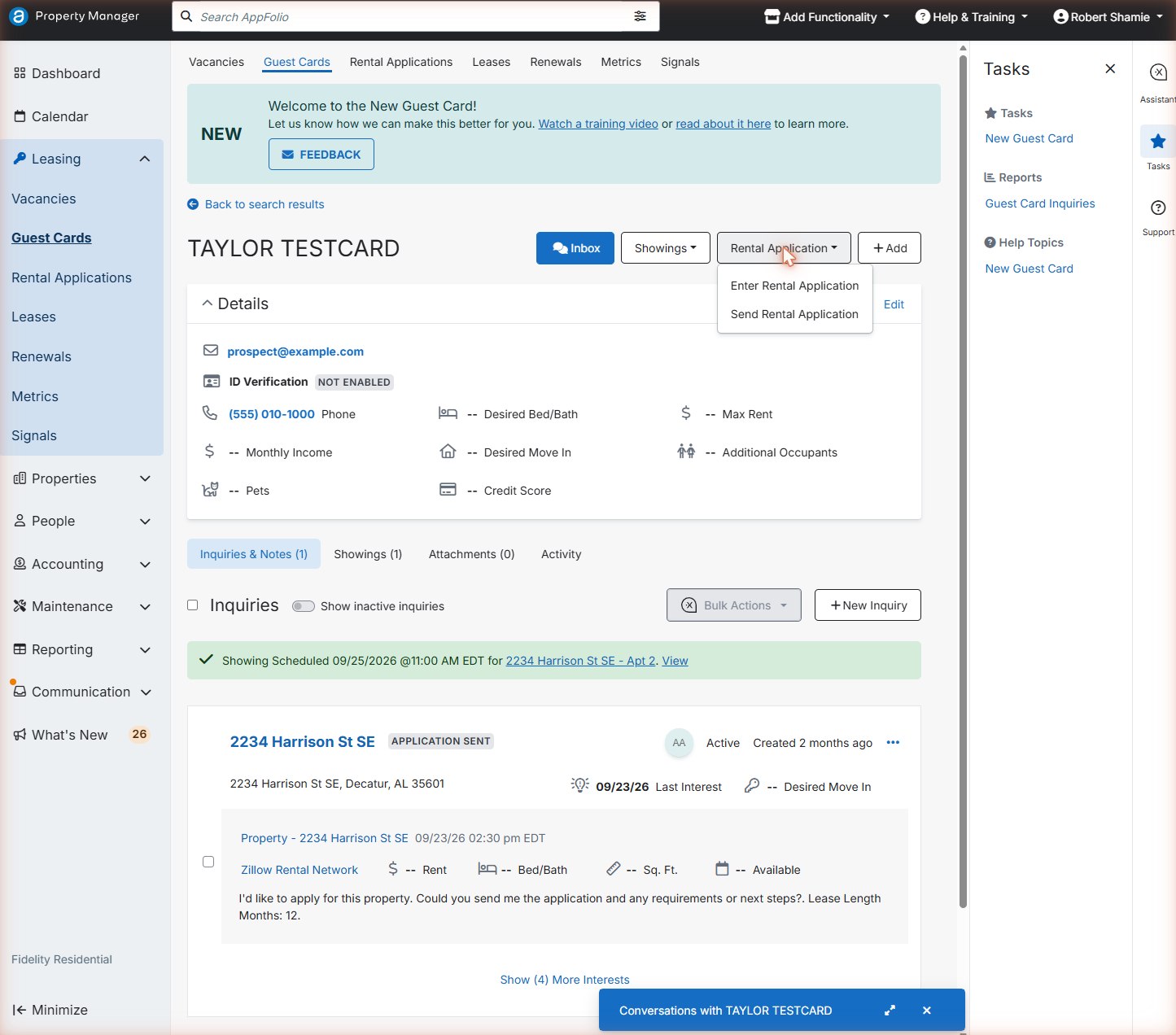 12
12- 1Enter Rental Application: paper or in-person
- 2Send Rental Application: online link
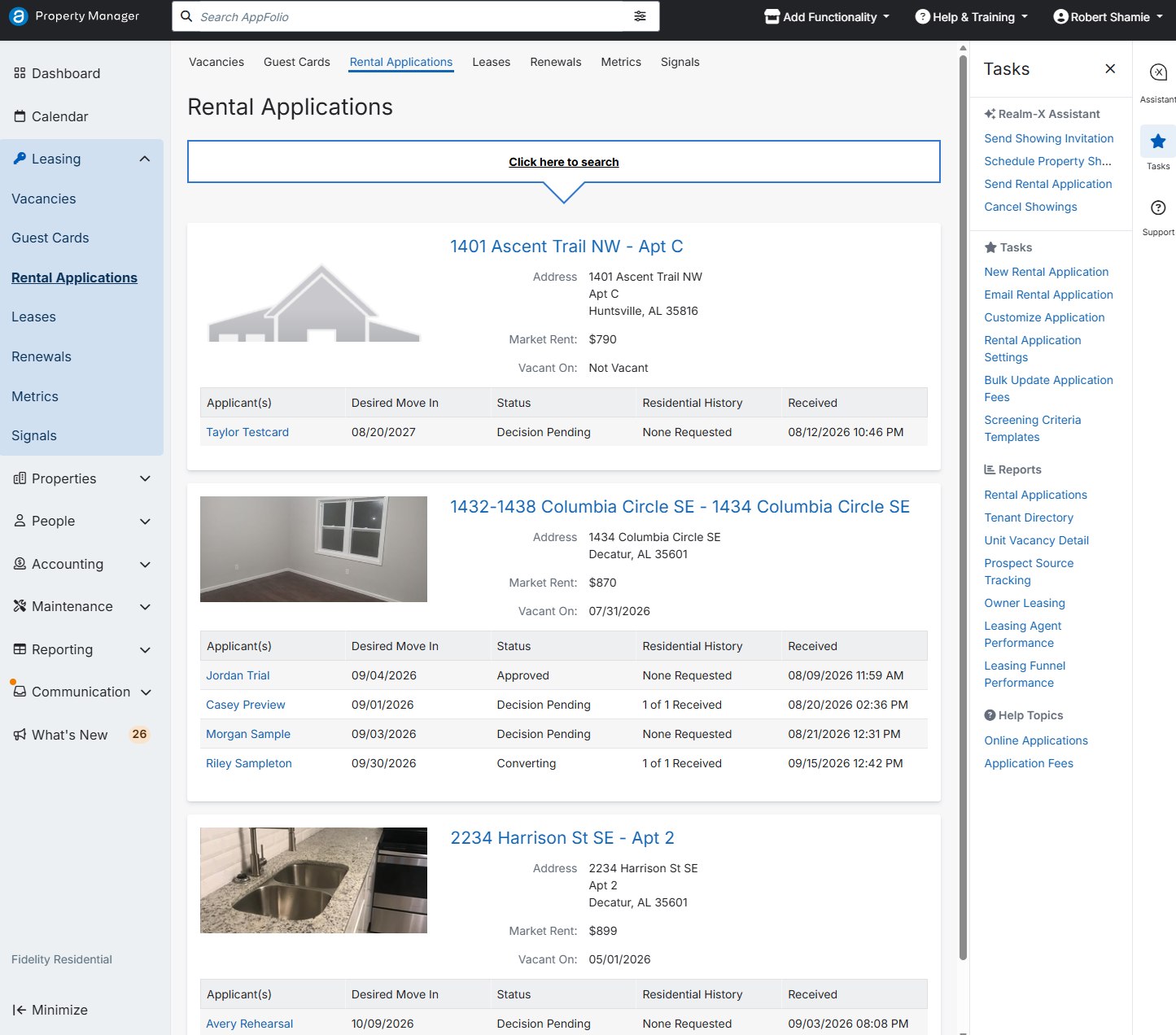
What our system does for you
So you know what prospects are hearing, and when to step in.
The daily follow-up schedule
Every new lead gets a 30-day series of texts, emails and friendly AI phone calls. It runs once a day, mid-morning (about 10 AM Central), and never at night.
Day 1 is the day the lead arrives. Scroll sideways on a phone.
| When | What the prospect gets |
|---|---|
| Day 1, within minutes | Showing invitation link (text + email), rental application, and an AI call to answer questions and book a time |
| Days 2–8 | The busiest stretch. A call, text or email almost every day (“Still thinking about…?”, “Still available…”) |
| Days 10–28 | Every few days, alternating calls, texts and emails |
| Day 30 | A “closing the loop” email. After that the lead is closed. |
What stops or changes it
| If… | The system… |
|---|---|
| They book a showing | Pauses the series and switches to showing reminders |
| They submit an application | Stops all follow-up |
| They cancel a showing | Starts the one-week “let's find a new time” series |
| The showing time passes | Re-sends the application and starts a one-week “thanks for touring, ready to apply?” series |
| They reply STOP to a text | Stops texting them (emails and calls continue) |
| No one has showing hours for that home | Asks the prospect for good times, then waits |
| They reply “not interested” or ask for no calls | Nothing automatically. Tell us. |
Showing reminders and cancellations
Once a showing is booked, the system reminds the prospect and watches for cancellations, so you're less likely to drive out for nothing.
| When | Who sends it | What happens |
|---|---|---|
| ~24 hours before | Our system | Text + email + short AI call: “Your showing at … is tomorrow at …” |
| ~4 hours before | Our system | Text + email + short AI call: “…in about 4 hours”. If they can't make it, the AI offers a new time. |
| ~1 hour before | AppFolio | A text asking them to reply CONFIRM (or DENY). No reply can cancel the showing automatically. |
| Last 90 minutes | Our system | Checks AppFolio every 15 minutes for a cancellation |
| After the time | Our system | Re-sends the application and starts the “ready to apply?” series |
Sign calls and recordings
The phone number on our yard signs is answered by Casey, our AI leasing assistant. After every call, an email summarizes it, with a link to the recording.
What happens on a sign call
- Casey answers: “Thank you for calling Fidelity Residential! This is Casey, an A.I. leasing assistant, and this call may be recorded.”
- Casey finds out which home, answers questions from the listing facts, asks a few friendly questions (move-in, occupants, pets, budget), and offers a showing.
- If they want to see it, Casey books a time from your availability and reminds them about the 1-hour CONFIRM text.
- If they ask for a person, or Casey can't answer, Casey takes a message and promises a callback. It never transfers calls.
- An email arrives within minutes: BOOKED, FOLLOW UP, or ABANDONED (they hung up early).
Read the email
| Part of the email | What it tells you |
|---|---|
| Reason line | Why a human is needed: “asked for a human”, “couldn't answer the caller's question”, “left contact info but did not book”, or VERIFY IN APPFOLIO (Casey said it booked, but no booking was found) |
| Callback number | The number to call. Use the number that reached them if two differ. |
| Open question / Messages | Exactly what they want to know. Look up the answer before you call. |
| Qualification | Move-in, occupants, pets, budget, as the caller said them |
| Call → ▶ Play | The recording. Tap to listen in your browser. “audio file” downloads it. |
| Transcript | The whole conversation in text, if you'd rather read than listen |
What to do with each email
| You do | |
|---|---|
| Follow up | Call them back quickly, the same day and ideally within 2 hours. Search AppFolio for their guest card (create one if missing), log the call with Add → Record Communication, and book a showing if they want one. Tell us how it went. |
| Booked | Nothing urgent. The showing is on your calendar and reminders are automatic. Listen to the recording before the showing if you like. |
| Abandoned | Usually nothing. The system texts them automatically. If the transcript shows real interest, give them a call. |
The system emails
These come from the automation mailbox. We decide who's copied on each one, so ask us which you'll receive.
| When | What it means | You do | |
|---|---|---|---|
| Showing booked | Right after a booking | A prospect picked a time, online or on an AI call | Check it's on your calendar and that you can make it. Reach out to introduce yourself and remind them about the CONFIRM text. |
| Lead Processed (ends in “showing booked”, “voicemail”, “no answer”, “call not placed” or “needs showing times”) | Minutes after a new lead | Shows the lead, the home, what was sent, and how the first AI call went (with summary and transcript) | “Showing booked”: same as above. “Needs showing times”: no one has hours for that home, so fix your availability and tell us. |
| Cadence Execution | After the mid-morning run | Everything the system sent today, what was skipped and why, and anything that failed | Usually nothing. It's handy to see who was contacted before you call someone. |
| Daily Voice Call Report | Late morning (noon Eastern) | Every AI call from the last 24 hours: outcome, recording, summary, plus a sign line section | Skim for anyone who asked for a person or a callback. |
When to step in
A cheat sheet for “the system has this” versus “this needs you”.
| You see… | You do… | Tell us? |
|---|---|---|
| A “Sign call — follow up” email | Call back the same day, log it, book if they want | Yes: how it went |
| A prospect texts or emails back with a question | Answer in AppFolio, and add a note | If you can't answer |
| “We rented elsewhere” / “stop calling” | Reply politely, add a note, don't contact them again | Yes, same day |
| A showing booked with you | Confirm you can make it, and introduce yourself | Only if you can't make it |
| Prospect confirmed, didn't show | Wait 15 minutes, call and text, mark No Show, add a note | Yes, same day |
| Prospect wants a different time | Edit the showing (don't cancel) | No |
| A “Needs showing times” lead, or “No Showing Times” on Vacancies | Check your availability | Yes |
| A new lead just came in | Nothing. The system is on it. | No |
| Someone asks for a virtual or video tour | Offer times and schedule it | Yes |
| Anything about approval, pricing, deposits or pets beyond the listing | “Let me check and get back to you today” | Yes |
Reference
Keep this part handy.
A day in the life
A sample Friday, so you can see how it all fits together.
Coffee and AppFolio. Open Calendar → Agenda for today's showings. Check each one still says Scheduled.
Open Inbox, filter to prospects. Two people texted back overnight, so you answer both from their guest cards.
A “Sign call — follow up” email: a caller wants to know if a co-signer is OK. You don't know, so you tell us, then call back: “Let me confirm that and call you by noon.” You log the call.
The system runs its daily follow-up. You don't need to do anything.
Arrive 10 minutes early for the 11:00 at Harrison St. Lights on, blinds open.
Show the home. Before they leave: Send Rental Application from their guest card and add a note.
The 3:00 in Huntsville confirmed but doesn't arrive. You wait 15 minutes, call and text, Mark as No Show, add a note, and message us.
Update next week's availability. Saturday is busy, so you add Saturday morning hours.
Glossary
- Guest card
- A prospect's file in AppFolio: contact info, interests, showings, messages and notes.
- Lead
- A person who asked about a home. Every lead gets a guest card.
- Inquiry / interest
- One request about one home. A guest card can have several.
- Showing
- An appointment to see a home. Statuses include Scheduled, Completed, No Show and Canceled.
- Showing invitation
- A text and email with a personal link where the prospect picks a time from agent availability.
- Scheduling link
- That personal link. It looks like appfol.io/…
- Availability
- Your weekly hours for showings. Prospects and the AI caller can only book inside them.
- Cadence
- Our system's 30-day series of follow-up texts, emails and AI calls.
- Sign call
- A call to the number on a yard sign, answered by Casey, our AI assistant.
- CONFIRM text
- AppFolio's text about an hour before a showing. No reply can cancel the showing.
- No Show
- The prospect confirmed and didn't come. Mark it in AppFolio and tell us.
- Unified inbox
- Communication → Inbox: every text conversation in one list.
- Opted out / STOP
- The prospect asked not to be texted. Never text them again.
- Activity (audit log)
- The guest card tab listing everything sent and done, and by whom.
Troubleshooting
I can't sign in. After 3 wrong passwords, stop. Wait 15 minutes or use “Forgot password?”. Still stuck? Message us. Don't keep trying.
The text code never arrives. Check your signal and that the number on file is yours, wait a minute, and use “resend”. Then message us.
A prospect says the booking link doesn't work. Links can expire, or a home can run out of open times. Check your availability first, then send one new showing invitation from their guest card.
Two showings at the same time. Keep the first one. Call the second prospect to move theirs, then Edit the showing. Add buffer and drive time to your Showings Settings.
A prospect asks, “Am I talking to a robot?” The AI assistant always says yes, it's an AI. When they reach you, you're the real person. Introduce yourself by name.
A prospect asks for a real person. Give them your name and have them reply in the same thread. The call or message is logged on their card.
I sent something twice by mistake. No harm done. Send one short apology from the guest card and add a note.
Quick reference card
The ten things you'll do most, and where to click.
Set my hours
Your name → My Settings → Set Showing Availability → Bulk Add AvailabilitySee today's showings
Calendar → AgendaFind a prospect
Search AppFolio (top bar) → name / phone / emailText or email them
Guest card → Inbox → Send via SMS / Email → SendLog a call or note
Guest card → Add → Record Communication / NoteBook a showing
Guest card → Showings → Schedule a ShowingChange a showing time
Guest card → Showings tab → expand → EditMark a no show
Guest card → Showings tab → expand → Mark as No Show → tell usSend the application
Guest card → Rental Application → Send Rental Application (check Activity first)Enter a paper application
Guest card → Rental Application → Enter Rental ApplicationWho to contact
For anything unclear, stuck, or needing a decision, contact us.
Fair housing rules and contractor conduct are covered in your contractor agreement.